

Overview
The Mobile Allowlist is a security feature that restricts which mobile applications can access your Magic application. When enabled, Magic will only allow requests from mobile apps whose App IDs are explicitly included in your allowlist.Security Benefits
App Protection
Prevents unauthorized mobile apps from using your Magic application and API keys.
Traffic Control
Blocks all traffic from unknown mobile sources, ensuring only approved apps can authenticate.
How It Works
When a mobile app makes a request to your Magic application:- App ID Check: Magic verifies the app’s Bundle ID (iOS) or Application ID (Android) against your allowlist
- Allow/Block: Requests from allowed apps proceed normally; blocked apps receive an error
- User Notification: Blocked apps show a user-friendly error message explaining the restriction
Mobile Only: The Mobile Allowlist only applies to mobile applications using the Magic SDK. It doesn’t affect web applications or server-side integrations.
Usage
Prerequisites
Ensure your mobile SDK has been updated to the required version to enable this feature:- iOS
- Android
- Flutter
- Unity
- React Native
Version: 3.2.0 or later
Dashboard Configuration
Access Your Application
Navigate to the Magic Dashboard and select the application you want to configure.
Add App IDs
In the text input field that appears, add the App IDs you want to allow. You can add multiple App IDs by separating them with commas or line breaks.
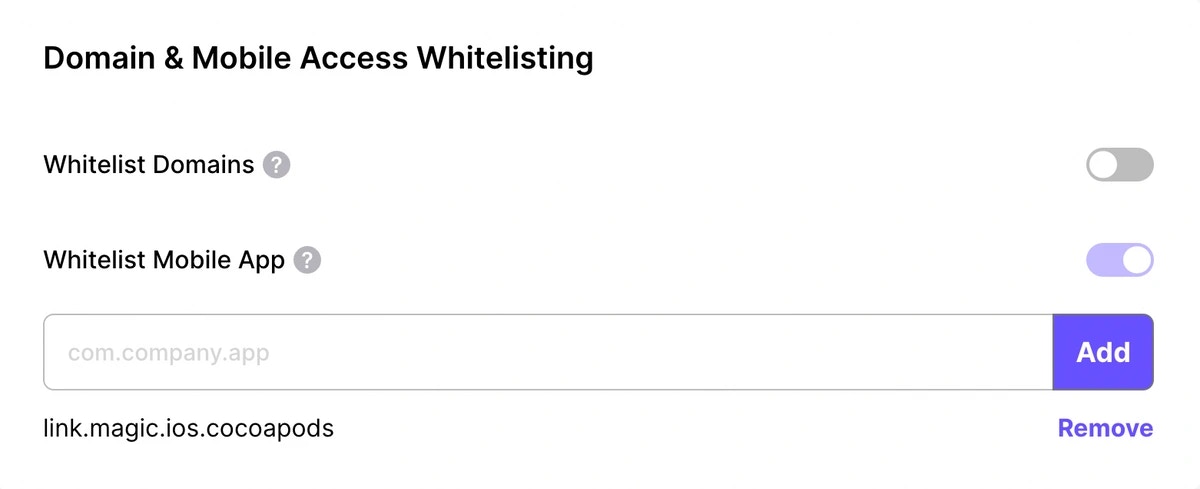
After adding App IDs, traffic from unauthorized mobile sources is blocked. Users from unauthorized apps will see an error message when they try to log in. If this happens unexpectedly, add the App ID from the error message to unblock these users.
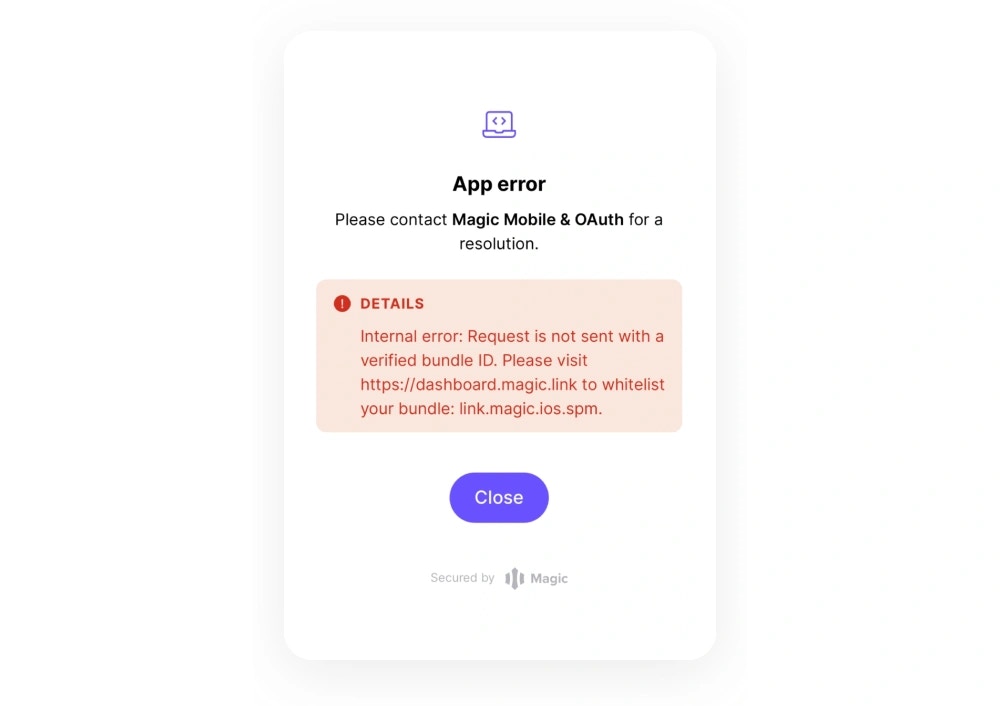
App ID Formatting
When adding App IDs to your allowlist, follow these formatting rules:Supported App ID Formats
Supported App ID Formats
- iOS Bundle ID:
com.example.app,link.magic.ios - Android Application ID:
com.example.app,link.magic.android - Reverse DNS notation: Usually written as
domain.company.app - Minimum segments: Must have at least two segments (one or more dots)
- Valid characters: Alphanumeric [a-zA-Z0-9] or
-or_
Examples
Examples
Important Rules
Important Rules
- Case sensitive: App IDs are case-sensitive
- Exact match: Must match exactly as defined in your app
- No wildcards: Specific App IDs only, no wildcard patterns
- Platform specific: iOS and Android App IDs are separate entries
Finding Your App ID
The App ID is represented by the bundle identifier on iOS and the applicationId on Android:- iOS
- Android
Apple uses bundle identifiers (bundle IDs) to uniquely identify an application in Apple’s ecosystem. These IDs are usually written in reverse DNS notation.Location: Target → Signing & Capabilities → Bundle Identifier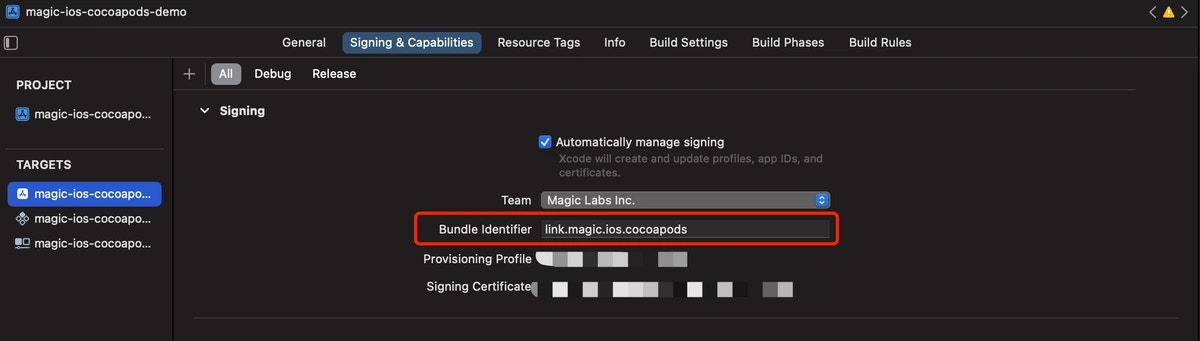
Programmatic Configuration
You can manage your mobile allowlist programmatically using the Magic API. This is useful for:- Automated deployments: Add App IDs as part of your CI/CD pipeline
- Bulk management: Add or remove multiple App IDs at once
- Integration: Manage App IDs from your own admin interface